

Exam registration
Registering for an exam in Sisu follows the same principles as the normal course registration. To register for an exam, please follow the general instructions for course registrations for degree students or open and non-degree students.
More exam-specific instructions can be found further down on this page.
Please note that not all courses have exam registrations in Sisu. Hanken uses many exam forms and only on-site exams (digital or paper) have their registration in Sisu. Read more about exams at Hanken here Opens in new window .
Specific information regarding exams can always be given by the course examiner, on the Moodle page for example, so please make sure to thoroughly read the information provided for each individual course.
|
Quick guide for exam registration in Sisu
|
Exam registration in Sisu
Registering for traditional on-site exams is, generally, done in Sisu. Exam registrations generally work the same way as course registrations, following the same steps, rules and principles, with a few exceptions that can be found further down on this page. (Read more about course registrations here)
You register for an exam by clicking on the course code in your study plan and navigating to the Completion Method tab. If you cannot find the course in your primary study plan, make sure to add it to the appropriate section and make sure it is in the correct version.
You should already have selected the teaching for the course in the Teaching column when registering for the course. Now, choose the exam for the campus you study at as well.
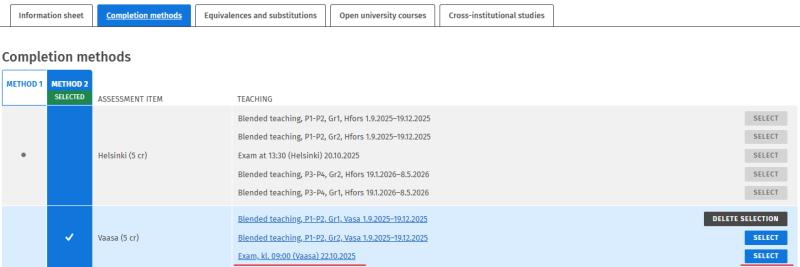
Complete the exam registration on the Registration page.
Be careful to check that your registration fulfils all criteria so that you are accepted to participate in the exam. Instructions for how to check the status of your registration can be found here.
Differences between exam registrations and course registrations
Exam registrations follow the same principles and steps as course registrations with a few exceptions.
Time & Place
- The date and time for the exam can be found in the name of the Exam in the teaching column. The exam does not appear in your Sisu-calendar. You need to keep track of when the exam takes place on your own.
- The location for the exam is not shown in Sisu. After the registration has ended, the exam coordinator will inform you where you are supposed to take the exam.
Registration details
- The registration period for course exams differs from course registrations. Registration opens one week after the course has started and closes one week before the exam takes place.
- In order for your registration to be accepted, you need to fulfil the same requirements as when registering to the course itself. In addition, you also must have a confirmed registration to the course teaching in Sisu in order for you to be accepted to the exam.
- When registering, you must inform the exam coordinators whether you have been granted individual arrangements or not. You cannot complete your registration without answering this question in Sisu.
Exam registration FAQ
Click on the questions below to see the answer directly
- How do I know if my exam registration was successful?
- I received a mail from Moodle that the exam opens soon. Am I registered?
- I have registered for an e-exam in the Exam software. Should I also register for the exam in Sisu?
- How do I cancel my exam registration?
- Help! I can’t find the exam registration in Sisu!
- Sisu doesn’t work. What should I do?
How do I know if my exam registration was successful?
You can see all your registrations for both courses and exams on the Registration page. If your registration has the status “Prediction: you will be admitted onto the course implementation” or “Your registration has been confirmed”, then your registration is OK and you do not need to do anything further.
If the status is “Requirements are not fulfilled” or “Your registration was not accepted”, your registration has failed. If your registration isn’t visible in either the “Registrations being processed” or “Registration processed” column, then your registration has not been completed.
You can find more information about how to check the status of your registration here.
I received a mail from Moodle that the exam opens soon. Am I registered?
Moodle automatically sends out a reminder e-mail to all students on a course a few days before a digital on-site exam starts. The mail is sent to all Moodle-page participants, regardless if they are registered to the exam in Sisu or not. In other words, the mail is not a sign that you have registered for the exam. Double-check your exam registration in Sisu.
I have registered for an e-exam in the Exam software. Should I also register for the exam in Sisu?
No. Only on-site exams (digital or paper) have their exam registrations in Sisu. Electronic exams in Exam, Moodle exams and other examination forms do not have their exam registration in Sisu.
How do I cancel my exam registration?
If registration is still ongoing, you can cancel your registration on the Registration page in Sisu. If the registration period has ended, you can cancel your registration by contacting tenter@hanken.fi
Help! I can’t find the exam registration in Sisu!
If you’ve followed the instructions but cannot see the exam anywhere, the reason might be that:
- The course does not have an exam registration in Sisu. Only on-site (digital or paper) have their course registration in Sisu.
- The exam hasn’t been published in Sisu yet. Exam registration opens during the course and closes a week before the exam date. Re-take exams are usually published after the course has ended.
- The exam date has already passed. Sisu does not show teaching or exams from the past.
Sisu doesn’t work. What should I do?
If you are experiencing technical issues with your registration in Sisu, contact sisu-student@hanken.fi for help.