

Spark – course evaluation programme
Spark is Hanken’s course evaluation system and is integrated into Moodle. There, you can manage course evaluations, monitor the response rate, review results and publish your feedback to students. You can also access the course evaluation directly via the menu link in the relevant Moodle course. For information on course evaluation guidelines and questions, please refer to the separate guidelines for course evaluation and questions.
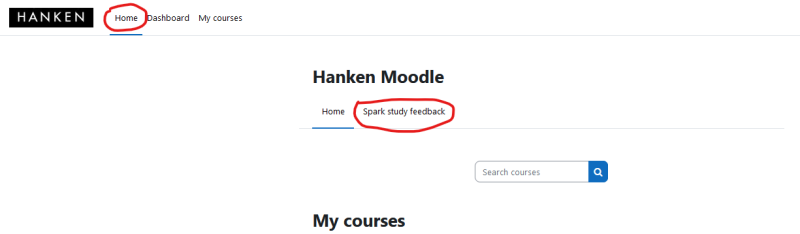
1. Check the course end date in Moodle
Spark uses the course end date in Moodle to open and close the course evaluation.
• The evaluation opens 1 week before the course end date. You can also activate the course evaluation at any time directly in Spark.
• The evaluation closes 2 weeks after the course end date.
• If the course has no end date in Moodle, no course evaluation will be created.
If the course ends significantly earlier or later than planned, the end date can be adjusted in Moodle.
2. Monitor the response rate
Spark automatically sends:
• A notification and link to all students’ email addresses when the evaluation opens.
• A reminder before the survey closes.
The teacher can also send up to two additional reminders.
3. Extend the response period if necessary
The response period can be extended by up to one month directly in Spark.
4. Review the results
At least 5 responses are required for a report to be generated.
Access to results
Teachers can view:
• Quantitative results
• Open feedback
Students can view:
• Quantitative results
5. Publish your teacher feedback
The teacher must publish their response within 14 days of the course evaluation closing.
It can be started whilst the evaluation is still open and saved as a draft.
6. Use midterm survey (optional)
In Spark, you can activate a midterm survey during the course. It contains five standard questions and closes before the regular course evaluation opens.
7. Reports in Power BI
Data from Spark is automatically transferred to
Spark instructions

Edit settings
- Log in to Moodle and navigate to the Spark tool.
- Select the course you want to edit.
- Go to the settings section (settings icon) of the course.
- Adjust the assessment period by changing the end date to extend the assessment time. Contact the Teaching Lab if you want to change the start date. If your course is active for several periods, you can set the course as ‘Non-stop’, the course evaluation is open for the whole time you wish it to be and students can do the course evaluation when they complete the course on their own.
- Save your changes to apply the new settings.
View results
- Log in to Moodle and navigate to the Spark tool.
- Select the course you want to view feedback for.
- Navigate to the results section (report icon) to view the feedback collected.
- Review and consider the feedback from participants.
Respond to the feedback and publish the report
- Log in to Moodle and navigate to the Spark tool.
- Select the course and go to the feedback results.
- Respond to the feedback by adding your comments or addressing specific points raised by the participants.
- Prepare the report by compiling the feedback and your responses.
- Publish the report to participants by selecting the Publish option and making sure it is visible to all registered participants.
Adding additional questions to a course evaluation
Teachers can add course-specific questions to a course evaluation survey before it opens to students.
To do so:
- Open the survey in Spark.
- Select Edit, then Edit again.
- Scroll to the bottom of the survey.
- Choose Add new question to create a question or Add from question bank to select an existing question.
If you would like a new question to be included in the shared question bank, please contact Teaching Lab.
How do I see the report and results?
When a course evaluation survey is closed, you as a teacher can see the results by clicking on the report icon for the course in question: Spark will automatically notify you when the survey is closed.
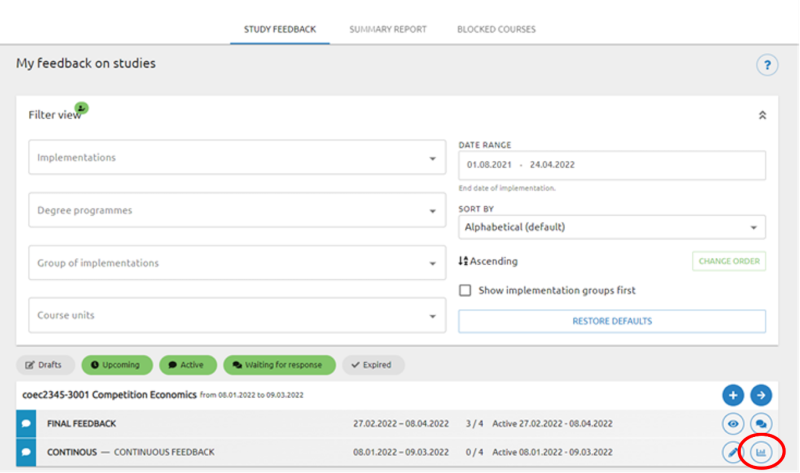
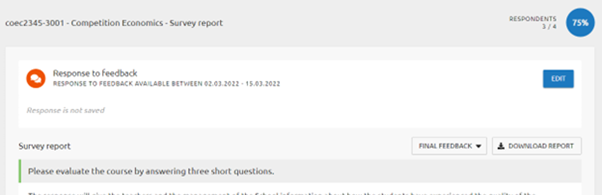
How do I write a response to the students?
You give your feedback by choosing to view the report for your course in Spark and filling in your response in the "Response to feedback" field:
Power BI Report
In addition to the report in Spark, Power BI generates reports and visualisations of Spark data. Power BI can be found via the homepage. Go to ‘Tools’, where Power BI is listed under ‘Other’. Within the tool, go to ‘Apps’ to access the course evaluation report.
All teaching staff can use Power BI to view and review course evaluation statistics. The report contains numerical data as well as open feedback. In addition, all the top evaluated courses are published in Power BI. Your view and access are restricted based on your role.
Course examinators: can view assessment statistics for their own courses, including the open feedback.
Heads of Subject: have access to all courses in their subject.
Heads of Department: have access to all courses within the department.
Programme Directors and Programme Coordinators: have access to courses within their academic level.
It is important to follow these access permissions and use data responsibly. For assistance or questions regarding access and data in the report contact the Teaching Lab.
All teachers are advised to always document and save their course evaluation reports and results for their own use directly from Spark.